> ## Documentation Index
> Fetch the complete documentation index at: https://docs.nomadicml.com/llms.txt
> Use this file to discover all available pages before exploring further.

# Dataset Studio quickstart

> Explore multimodal data with search, taxonomies, and filters

Dataset Studio helps you go from thousands of recordings to a curated set of
relevant events. Search across multimodal data using natural language, inspect
matching moments, and classify events with custom taxonomies to build datasets
for analysis and evaluation.

This guide takes a robot-action batch through the core workflow. You'll
create a Studio, find a grasp, label actions, and review the filtered clips.
The same steps apply to other processed datasets.

Before you start, have:

* A [Nomadic API key](/sdk/sdk_installation) with write access.
* A [Nomadic public example batch](https://colab.research.google.com/drive/1avyO3cI-MJrlBf992A-Eh2H-As9TM0hd), used below. You can also
  [run your own batch](/sdk/analyzing-videos/prompt-analysis) and use its ID.

## 1. Install and connect

```bash theme={null}
pip install -U nomadic pydantic
```

```python theme={null}
import os
from getpass import getpass
from typing import Literal

from nomadic import NomadicAI
from pydantic import BaseModel, Field

api_key = os.environ.get("NOMADIC_API_KEY")
if not api_key:
    api_key = getpass("Nomadic API key: ")
client = NomadicAI(api_key=api_key)

# Public robot-action example batch.
BATCH_ID = "aa1dbff79fb64c2a9f8a6bb92d322894"
```

## 2. Create a Studio

Run this once: each call creates a new Studio from the completed batch. It
reuses the batch's videos and analysis events.

```python theme={null}
studio = client.studio.create_from_batch(
    BATCH_ID,
    title="Robot actions — SDK walkthrough",
)
print("Studio ID:", studio.id)
print("Videos:", studio.video_count)
print("Open Studio:", studio.url)
```

Open `studio.url` to explore the same dataset in the app. See
[Create a Studio](/sdk/create-studio) for multiple batches and folders.

## 3. Find and watch an event

Deep Search returns ranked matches. Search can take longer on a new Studio
while its index is preparing; the SDK prints progress during that wait.

```python theme={null}
matches = client.studio.search(
    studio.id,
    "robot gripper picks up or moves an object",
    top_k=5,
)
print(matches)

if matches.first(1):
    matches.visualize(max_videos=3)  # Plays matching clips in a notebook.
```

Try another query if no matches appear. Search results are a ranked selection,
not every occurrence in the footage. See [Search a Studio](/sdk/studio-search)
for result properties and limits.

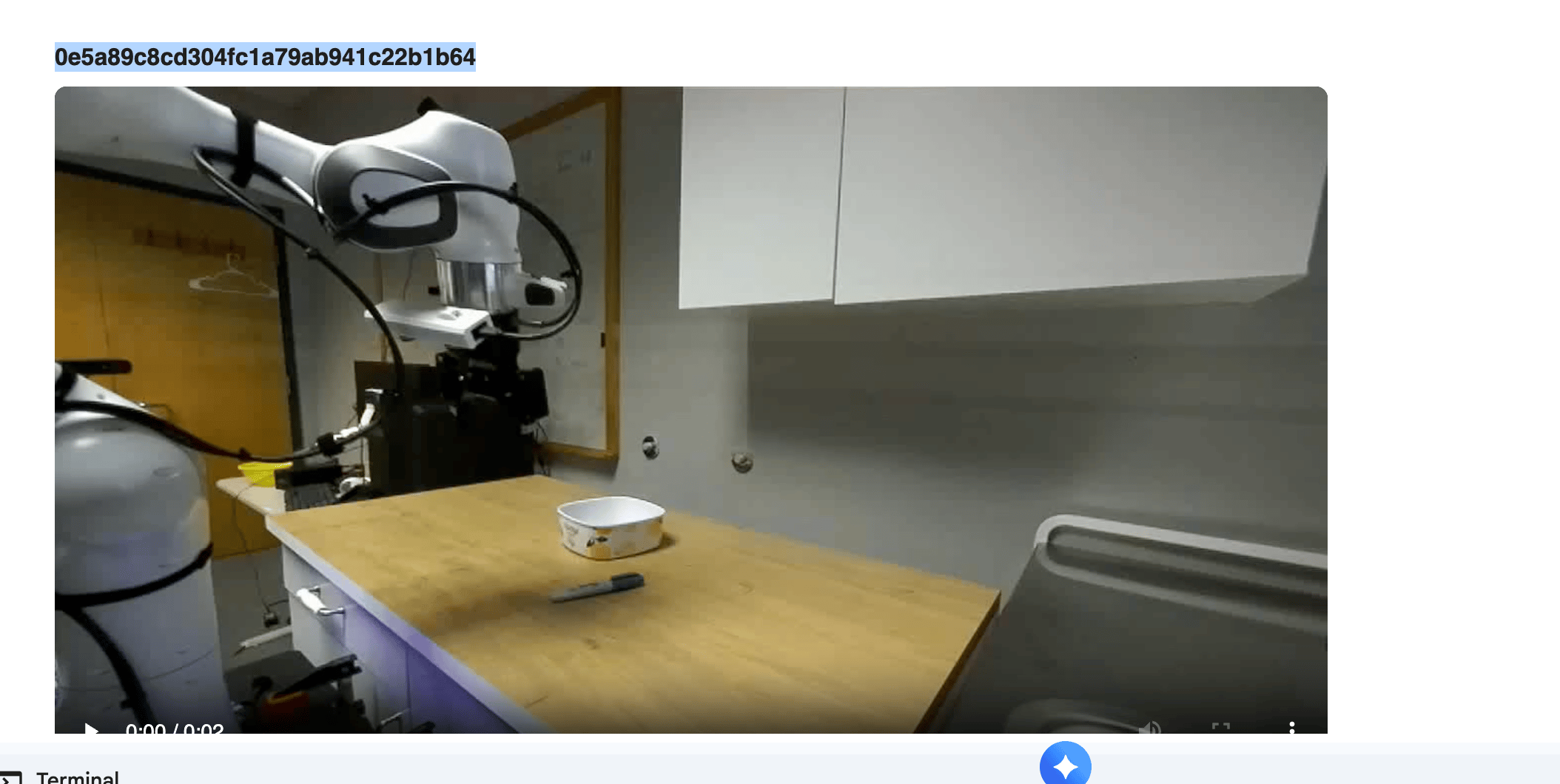
Here is one match from the notebook run. The result points to the source video
at **0.0–1.2 seconds**, where a robot grasps and lifts a marker. Run
`matches.visualize()` to play the clip and inspect its event details.

<div style={{ border: '1px solid rgba(127,127,127,0.25)', borderRadius: '12px', overflow: 'hidden', margin: '20px 0' }}>
  <img src="https://mintcdn.com/nomadicmlinc/zWUM5SFHflS_Yx2p/screenshots/studio-quickstart-robot-result.png?fit=max&auto=format&n=zWUM5SFHflS_Yx2p&q=85&s=814c649e0b4e7605444f30c95346c371" alt="Notebook result showing a robot-arm video matched by Dataset Studio search" style={{ width: '100%', aspectRatio: '2.4 / 1', objectFit: 'cover', objectPosition: 'center top', display: 'block' }} width="2108" height="1060" data-path="screenshots/studio-quickstart-robot-result.png" />

  <div style={{ padding: '12px 16px', fontSize: '14px' }}>
    <strong>Video ID:</strong> <code>0e5a89c8cd304fc1a79ab941c22b1b64</code><br />
    <strong>Match:</strong> The robot closes its gripper around a marker and lifts it from the table.
  </div>
</div>

## 4. Add a taxonomy

Deep Search helps you discover relevant moments, while taxonomies assign
structured labels across the Studio so you can consistently filter and curate
events.

This example adds an action category and a true/false gripper field. The run
classifies events in the background; `wait()` shows progress as each field
becomes available.

```python theme={null}
class RobotAction(BaseModel):
    robot_action: Literal["grasp", "move", "place"] = Field(
        description="Visible robot action: grasp, move, or place"
    )
    gripper_closed: bool = Field(
        description="Whether the gripper is closed around an object"
    )

run = client.studio.add_taxonomy(studio.id, RobotAction)
run.wait()
print("Final status:", run.status)
```

Use [Add a taxonomy](/sdk/studio-add-taxonomy) for other field types and for
what a completed run does—and does not—guarantee. If you rerun this cell on
the same Studio, you may get a duplicate-field error.

## 5. Narrow and review the results

The new labels let you find all events classified as grasps, then narrow that
set to grasps where the gripper is closed. Play a few clips to check the
results before using them in a dataset.

```python theme={null}
grasping = client.studio.filter(
    studio.id, filters={"robot_action": "grasp"}
)
closed_grasps = grasping.filter(
    filters={"gripper_closed": True}
)

print("Grasp events:", grasping.total)
print("Grasps with a closed gripper:", closed_grasps.total)
if closed_grasps.first(1):
    closed_grasps.visualize(max_videos=3)
```

For fields you did not define yourself, use `client.studio.taxonomy_schema(studio.id)`
to see their names and values. See [Filter a Studio](/sdk/studio-filters) for
more ways to combine conditions.

## Keep exploring

<CardGroup cols={2}>
  <Card title="Create from other sources" icon="database" href="/sdk/create-studio">
    Build a Studio from multiple batches or existing folders.
  </Card>

  <Card title="Search and inspect events" icon="magnifying-glass" href="/sdk/studio-search">
    Refine a query and inspect the events and source clips it returns.
  </Card>

  <Card title="Combine taxonomy filters" icon="filter" href="/sdk/studio-filters">
    Discover fields and narrow results with AND/OR conditions.
  </Card>

  <Card title="Export selected events" icon="download" href="/sdk/studio-export">
    Curate events and download their media and MCAP sessions.
  </Card>
</CardGroup>


This documentation is built and hosted on [Mintlify](https://mintlify.com), a developer documentation platform.